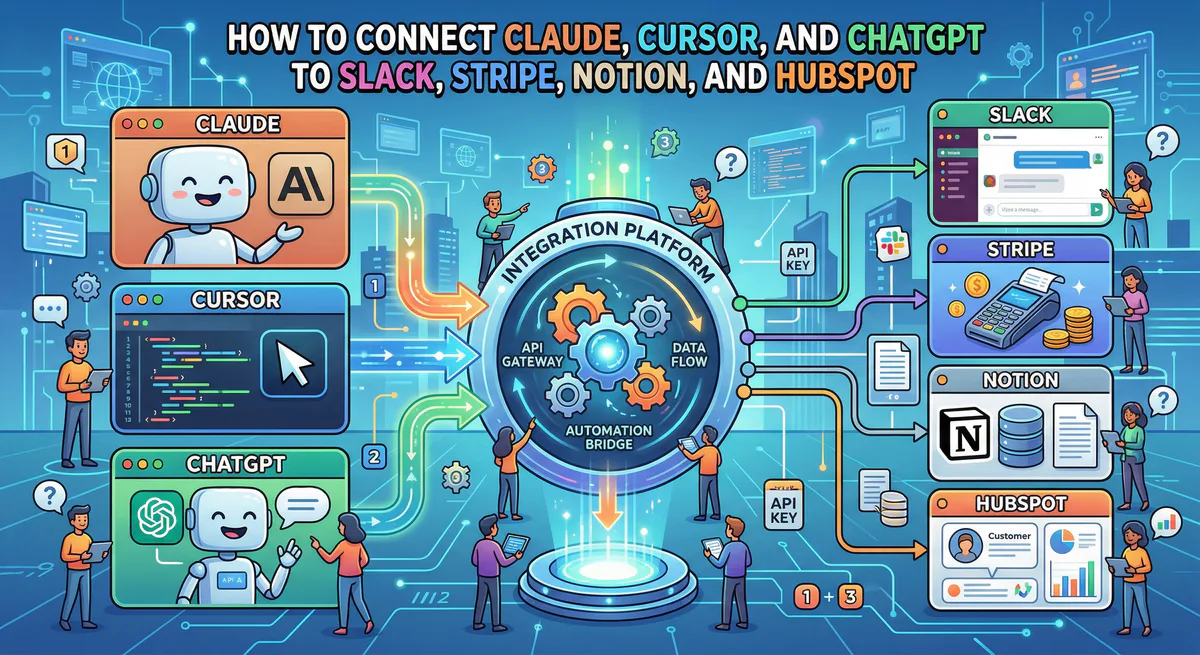
You want to connect Claude to Slack. Or Cursor to Stripe. Or ChatGPT to your HubSpot CRM. You’ve Googled it. You’ve found tutorials telling you to edit JSON config files, generate API keys, install npm packages, and set environment variables.
There’s a faster way. Every connection below takes under 5 minutes. No code. No terminal. No API key management.
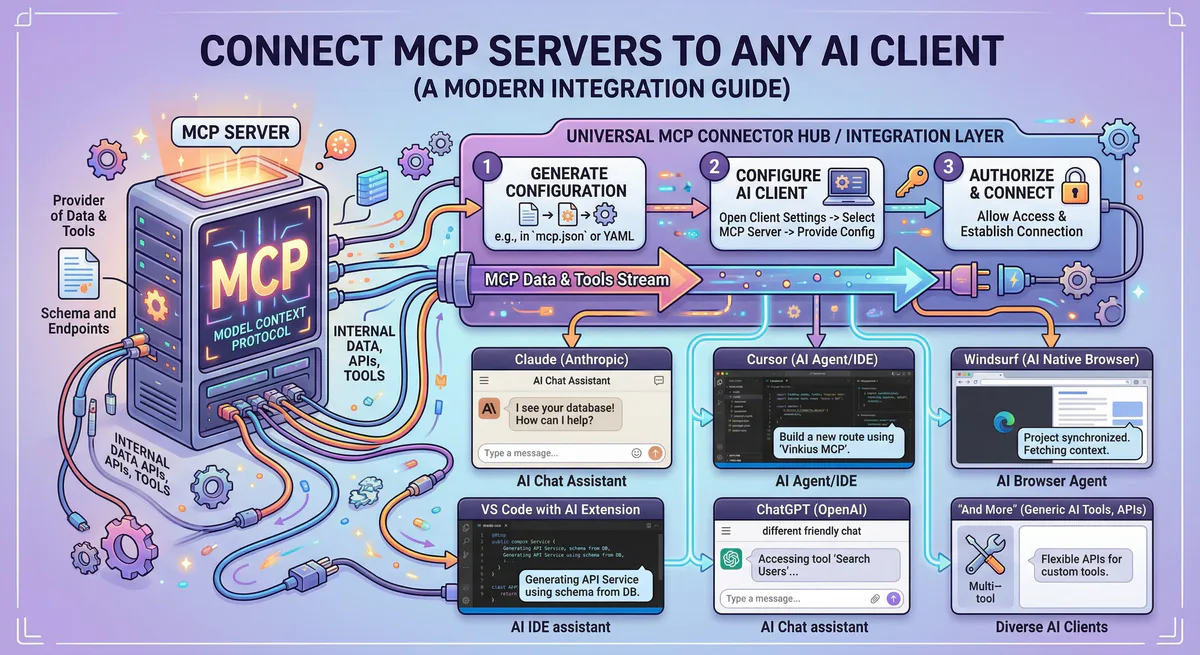
How Every Connection Works (Same 3 Steps)
No matter which AI tool or business app you’re connecting, the process is identical:
Step 1. Go to our App Catalog and subscribe to the app you need.
Step 2. Copy the connection URL we generate for you.
Step 3. Paste it into your AI tool’s MCP settings.
That’s it. Now let’s do it for each specific combination.
Connect Claude Desktop to Your Apps
Claude → Slack
What you’ll be able to do:
- “Summarize the last 20 messages in #sales”
- “Post a message to #marketing: Q1 report is ready”
- “What did the team discuss in #product yesterday?”
Setup:
- Subscribe to Slack MCP in our catalog
- Copy your connection URL
- In Claude Desktop: Settings → Developer → Edit Config
- Add to your
mcpServers:
{
  "mcpServers": {
    "slack": {
      "url": "https://edge.vinkius.com/YOUR_TOKEN/slack-mcp"
    }
  }
}- Restart Claude. Done.
The DIY alternative (what you’re skipping): Create a Slack app in api.slack.com, generate a Bot Token, install @modelcontextprotocol/server-slack via npx, configure environment variables, manage token rotation manually. ~45 minutes + ongoing maintenance.
Claude → Stripe
What you’ll be able to do:
- “What’s our MRR this month?”
- “List all failed payments from the last 7 days”
- “How many new subscriptions this week vs. last?”
Setup:
- Subscribe to Stripe MCP in our catalog
- Copy your connection URL
- Add to Claude’s config:
{
  "mcpServers": {
    "stripe": {
      "url": "https://edge.vinkius.com/YOUR_TOKEN/stripe-mcp"
    }
  }
}- Restart Claude. Done.
The DIY alternative: Generate a Stripe Restricted API Key, figure out which permissions to enable (there are 40+), store it in a .env file, install the Stripe MCP server, hope your key doesn’t expire. ~60 minutes + security risk of plaintext keys.
Claude → Notion
What you’ll be able to do:
- “Find the product requirements doc and summarize it”
- “What tasks are marked ‘In Progress’ in our project tracker?”
- “Add a new page to the Engineering wiki with this content”
Setup:
- Subscribe to Notion MCP in our catalog
- Copy your connection URL
- Add to Claude’s config:
{
  "mcpServers": {
    "notion": {
      "url": "https://edge.vinkius.com/YOUR_TOKEN/notion-mcp"
    }
  }
}- Restart Claude. Done.
Claude → HubSpot
What you’ll be able to do:
- “Find all enterprise leads added this week”
- “What deals are in the ‘Negotiation’ stage?”
- “Update the contact John Smith with these meeting notes”
Setup: Same pattern. Subscribe to HubSpot MCP → copy URL → add to config → restart.
Claude → Google Sheets
What you’ll be able to do:
- “Read the Q1 revenue sheet and summarize by region”
- “Add a new row to the expense tracker”
- “What’s the total in column D of the budget spreadsheet?”
Setup: Subscribe to Google Sheets MCP → copy URL → add to config → restart.
Connect Cursor to Your Apps
Cursor makes it even easier — no config files needed.
Cursor → Any App
Setup:
- Subscribe to the app in our App Catalog
- After subscribing, click the “Connect to Cursor” button
- Cursor opens automatically and asks you to confirm
- Done. Start using it.
Or manually:
- Open Cursor → Settings → MCP → Add Server
- Paste your connection URL
- The server appears in your MCP panel. Start prompting.
Works with: Slack, Stripe, HubSpot, Notion, Google Sheets, Jira, GitHub, Zendesk, Supabase — every app in our catalog.
Example prompts in Cursor:
- “Read the open tickets from Jira and create a sprint summary”
- “Check Stripe for our current churn rate”
- “Search our Notion docs for the API design guidelines”
Connect ChatGPT to Your Apps
ChatGPT Desktop → Any App
Setup:
- Subscribe to the app in our App Catalog
- Copy your connection URL
- In ChatGPT Desktop: Settings → Connectors → Add
- Paste the URL
- Start chatting with your data
Connect VS Code (Copilot) to Your Apps
VS Code → Any App
Setup:
- Subscribe to the app in our App Catalog
- Copy your connection URL
- Press
Ctrl+Shift+P→ type “MCP: Add Server” - Select “HTTP (Server-Sent Events)”
- Paste your connection URL
- The server is now available to Copilot
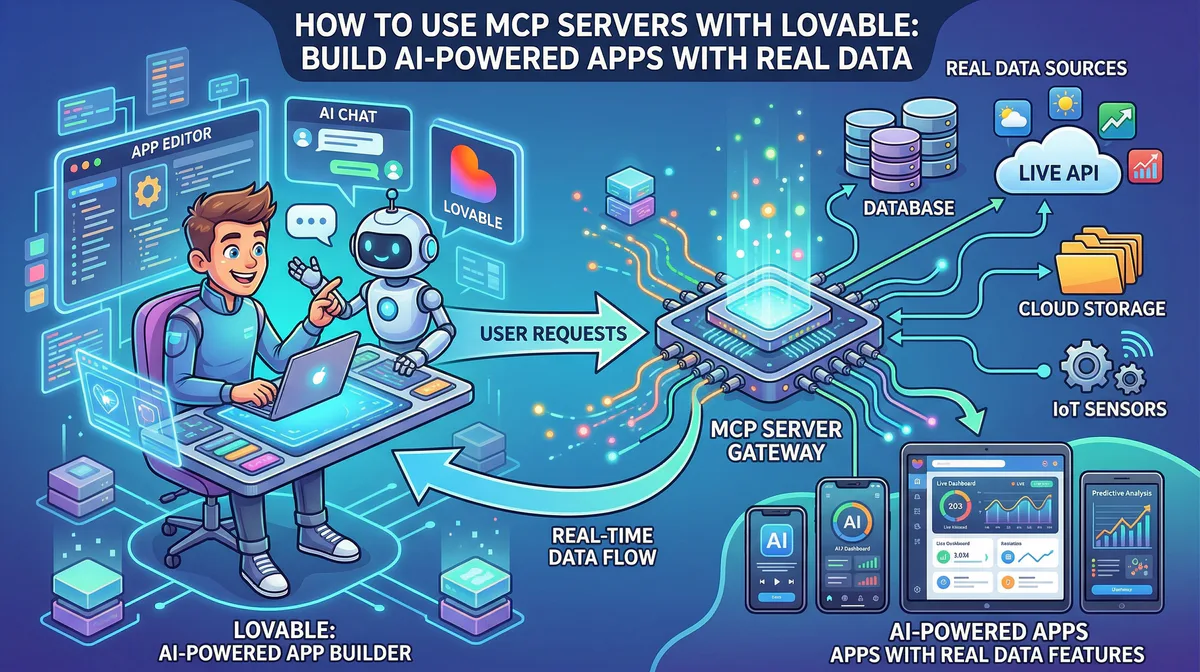
Connect Lovable to Your Apps
Lovable → Any App
Setup:
- Subscribe to the app in our App Catalog
- Copy your connection URL
- Go to Settings → Connectors → Personal Connectors
- Click “New MCP Server”
- Paste the URL and name your connection
- Your Lovable projects now have access to real data
Example: “Pull client invoices from Stripe and display them in the billing section of this dashboard.”
The Complete Connection Matrix
Here’s every combination at a glance. Every cell works the same way: subscribe → copy URL → paste.
| App | Claude | Cursor | ChatGPT | VS Code | Lovable |
|---|---|---|---|---|---|
| Slack | ✅ | ✅ | ✅ | ✅ | ✅ |
| Stripe | ✅ | ✅ | ✅ | ✅ | ✅ |
| HubSpot | ✅ | ✅ | ✅ | ✅ | ✅ |
| Notion | ✅ | ✅ | ✅ | ✅ | ✅ |
| Google Sheets | ✅ | ✅ | ✅ | ✅ | ✅ |
| Jira | ✅ | ✅ | ✅ | ✅ | ✅ |
| GitHub | ✅ | ✅ | ✅ | ✅ | ✅ |
| Zendesk | ✅ | ✅ | ✅ | ✅ | ✅ |
| Supabase | ✅ | ✅ | ✅ | ✅ | ✅ |
| Gmail | ✅ | ✅ | ✅ | ✅ | ✅ |
| + 2,500 more | ✅ | ✅ | ✅ | ✅ | ✅ |
Why This Is Easier Than the DIY Approach
Every connection you just saw requires 3 things the traditional way:
- An API key from the business app (Stripe dashboard → API keys → create restricted key → select 40+ permissions)
- An MCP server installed on your machine (npm install, npx, Node.js version management)
- A config file with sensitive credentials stored in plaintext on your disk
With us, you skip all three:
- No API keys in your config — We store them in an encrypted vault
- No server to install — We host it for you, always running, always updated
- No plaintext credentials — Your config only contains a URL, not secrets
Plus, every connection includes features the DIY approach doesn’t have:
- Automatic DLP — Credit cards, SSNs, and API keys are redacted before reaching your AI
- Audit trail — Every request your AI makes is logged
- Kill switch — Disable any connection instantly with one click
- FinOps controls — Set request limits to prevent runaway costs
Start Connecting
Step 1. Create a free account.
Step 2. Browse the App Catalog — over 2,500 apps available.
Step 3. Subscribe to your first app. Copy the URL. Paste it into your AI tool.
Step 4. Ask your AI something real.
Your first connection takes 3 minutes. Every additional one takes 30 seconds.
Need a connection that’s not in the catalog? Let us know at support@vinkius.com — we add new apps every week.
Your agents need tools. We make them safe.
Pick an MCP server from the catalog. Subscribe. Copy the URL. Paste it into Claude, Cursor, or any client. One URL — DLP, audit trail, and kill switch included.
V8 sandbox isolation · Semantic DLP · Cryptographic audit trail · Emergency kill switch