How to Connect MCP Servers to Any AI Client — Claude, Cursor, VS Code, Windsurf, ChatGPT, and More
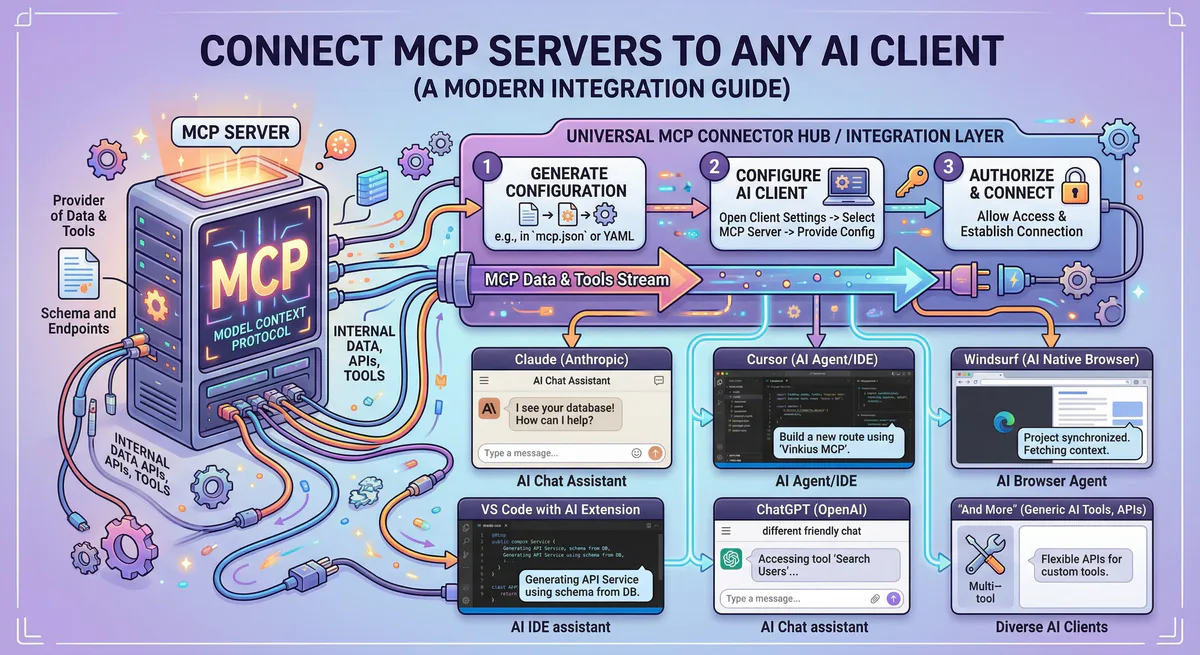
Exposing internal application databases, codebase repositories, and messaging APIs to your conversational assistants allows large language models to execute commands instead of merely suggesting them. Integrating these adapters requires configuring transport connections within your client software.
This guide provides configuration instructions for all major coding environments and agent frameworks, detailing both local and managed edge connection models.
The two ways to connect an MCP server
Connecting Model Context Protocol (MCP) servers can be achieved through local installation or a managed cloud gateway. Local servers execute directly on your machine but expose sensitive plaintext tokens. Managed gateway solutions isolate credentials within encrypted server-side vaults and streamline setup through secure connection endpoints.
Choosing how to run and connect your MCP tools depends on your security boundaries and infrastructure resources:
- Local Configuration: The server background processes run directly on your workstation. This requires installing runtime platforms like Node.js or Python, managing raw credentials in local settings files, and initiating command-line processes.
- Managed Gateway Integration: The server is hosted on a secure cloud gateway. You subscribe to the tool, copy a single connection endpoint URL, and paste it into your editor. The gateway handles request encryption, data loss prevention (DLP), and credential isolation.
Implementation Difference
When configured locally, your configuration file contains plaintext access credentials:
{
  "mcpServers": {
    "repository": {
      "command": "npx",
      "args": ["-y", "@modelcontextprotocol/server-repository"],
      "env": {
        "REPOSITORY_PERSONAL_ACCESS_TOKEN": "token_xxxxxxxxxxxxxxxxxxxx"
      }
    }
  }
}
This setup exposes credentials in text files. If these files are committed to code repositories or compromised by malware, your integration tokens are exposed.
Using a managed gateway, the configuration file only contains the secure connection URL:
{
  "mcpServers": {
    "repository": {
      "url": "https://edge.vinkius.com/YOUR_VINKIUS_TOKrepository-mcp"
    }
  }
}
There are no raw API keys stored locally, no system packages to install, and no environment paths to configure. The connection gateway negotiates the underlying protocol and filters queries before they reach your databases.
Claude Desktop
Connecting MCP servers to Claude Desktop requires updating the application’s local configuration JSON file. Developers access settings, edit the configuration to insert the gateway connection URL under the mcpServers key, and fully restart the desktop application from the taskbar tray to launch the tools.
Connection Guide
- Open the Configuration Settings: Click your user avatar in the bottom-left corner of Claude Desktop, go to Settings, select Developer, and click Edit Config. This opens your configuration JSON in a text editor.
- Inject the Server Endpoint: Insert your gateway connection URL into the configuration object:
{
  "mcpServers": {
    "repository": {
      "url": "https://edge.vinkius.com/YOUR_VINKIUS_TOKrepository-mcp"
    }
  }
}- If you run a local process instead, specify the executable paths and parameters:
{
  "mcpServers": {
    "repository": {
      "command": "npx",
      "args": ["-y", "@modelcontextprotocol/server-repository"],
      "env": {
        "REPOSITORY_PERSONAL_ACCESS_TOKEN": "token_xxxxxxxxxxxxxxxxxxxx"
      }
    }
  }
}- Save and Close the file.
- Restart Claude Desktop: Exit the application completely by right-clicking the system tray icon, and then launch the app again.
Cursor
Connecting MCP servers to Cursor IDE can be completed via deep link integration, configuration files, or settings. Developers navigate to Cursor features, add a server connection under the MCP pane using the SSE transport type, and paste the gateway connection endpoint to enable real-time tools.
Method 1: Deep Link Registration
For managed services, click the deep links generated by your dashboard to register servers instantly:
cursor://anysphere.cursor-deeplink/mcp/install?name=repository&config=eyJ1cmwiOiJodHRwczovL2VkZ2Uudmlua2l1cy5jb20vWU9VUl9WSU5LSVVTX1RPS0VOL3JlcG9zaXRvcnktbWNwIn0=Cursor will launch automatically, request confirmation, and complete the installation without manual file editing.
Method 2: UI Panel Setup
- Open settings by pressing
Cmd+,on macOS orCtrl+,on Windows/Linux. - Go to Features and click MCP.
- Click the Add New MCP Server button.
- Set the connection type parameter to SSE, input a reference identifier, and paste the endpoint URL.
VS Code (GitHub Copilot)
Connecting MCP servers to VS Code expands GitHub Copilot capabilities. Using the command palette, developers execute the add server command, select HTTP as the transport mechanism, and paste the gateway connection string. This updates the workspace configuration and instantly loads the new functions.
Command Setup
- Open VS Code and open the Command Palette (
Cmd+Shift+Pon macOS,Ctrl+Shift+Pon Windows). - Type MCP: Add Server and select the command.
- Select HTTP when prompted for the transport mechanism.
- Paste the connection endpoint URL and input a name.
This command writes the config into .vscode/mcp.json:
{
  "servers": {
    "repository": {
      "type": "http",
      "url": "https://edge.vinkius.com/YOUR_VINKIUS_TOKrepository-mcp"
    }
  }
}
Windsurf
Connecting MCP servers to Windsurf extends the Cascade AI model’s functionality. Developers access the Cascade panel, click the hammer icon to view the raw configuration JSON file, add their connection details under the serverUrl parameter key, and refresh the active panel to load tools.
Configuration Guide
- Open the Cascade panel in the sidebar.
- Click the hammer icon to manage MCP configurations, and select View raw config.
- Edit the
mcp_config.jsonfile to define your server integration:
{
  "mcpServers": {
    "repository": {
      "serverUrl": "https://edge.vinkius.com/YOUR_VINKIUS_TOKrepository-mcp"
    }
  }
}- Save the file and click Refresh in the Cascade panel to launch the tool integrations.
JetBrains (IntelliJ, WebStorm, PyCharm)
Connecting MCP servers to JetBrains IDEs is managed through the AI Assistant plugin settings. Within tools settings, developers add a server connection, choose the Server-Sent Events (SSE) transport type, and enter the gateway URL, allowing the editor to discover tools for database queries.
Setup Checklist
- Open your JetBrains IDE and open Settings (
Cmd+,on macOS,Ctrl+Alt+Son Windows/Linux). - Go to Tools, select AI Assistant, and click Model Context Protocol (MCP).
- Click the + icon to register a new connector.
- Select SSE as the transport type and enter the connection endpoint URL.
- Save the configuration. The IDE assistant will detect and list the active tools in the chat helper window.
Claude Code (Terminal)
Connecting MCP servers to the Claude Code CLI tool uses the client command line utility. Developers run the add command with the transport flag set to SSE, specify the server identifier name, and append the gateway URL, immediately linking external databases directly to their terminal sessions.
Terminal Command
Execute the client CLI command to link a new server:
claude mcp add --transport sse repository "https://edge.vinkius.com/YOUR_VINKIUS_TOKrepository-mcp"Verify that the tools are loaded inside your shell session:
# Within an active Claude Code session:
/mcp
The terminal will print all active server connections and the commands they expose.
Cline
Connecting MCP servers to Cline requires updating the extension configuration settings file. Developers click the server settings button, open the configuration JSON, insert their gateway connection URL under the target server definition object, and save the file to trigger automated tool recognition.
Configuration Guide
- Open the Cline sidebar view.
- Click the MCP icon in the top-right corner.
- Select Configure and click Configure MCP Servers.
- In the
cline_mcp_settings.jsonfile, add your server object:
{
  "mcpServers": {
    "repository": {
      "url": "https://edge.vinkius.com/YOUR_VINKIUS_TOKrepository-mcp",
      "disabled": false
    }
  }
}- Save the file. Cline will reload the configuration and display the green connection status indicator.
Goose
Connecting MCP servers to Goose is completed via the user interface or by editing the settings configuration file. In the dashboard, developers add a custom extension using the remote SSE option and paste their gateway connection URL to activate the tool integration.
Integration Setup
- User Interface: Open the Goose desktop settings dashboard, click Extensions, select Add custom extension, choose the Remote/SSE transport type, and paste your URL.
- Config File: Edit the configuration file located at
~/.config/goose/config.yaml:
extensions:
  repository:
    type: remote
    uri: https://edge.vinkius.com/YOUR_VINKIUS_TOKrepository-mcp
Restart Goose to complete the configuration updates.
ChatGPT
Connecting MCP servers to ChatGPT requires entering developer configurations. Users navigate to the connectors tab in settings, toggle developer mode, register a new connector, and input their gateway connection string, allowing ChatGPT to execute database and API tasks in conversation windows.
Step-by-Step Settings
- Access the settings panel in the ChatGPT interface.
- Under the Connectors section, toggle the developer helper modes to active.
- Click the add button to configure a new connection.
- Input the gateway URL and save.
- In your active conversation, click the options button to enable your registered tools.
Framework SDKs
Connecting MCP servers to agent frameworks uses programmatic clients in Python, TypeScript, and C#. Developers import the library clients, configure the transport protocol to use SSE or Streamable HTTP, and point the parameters to their gateway URL, exposing secure tool sets to custom agents.
Vercel AI SDK (TypeScript)
import { createMCPClient } from "@ai-sdk/mcp";
import { generateText } from "ai";
import { provider } from "@ai-sdk/provider";

const client = await createMCPClient({
  transport: {
    type: "sse",
    url: "https://edge.vinkius.com/YOUR_VINKIUS_TOKrepository-mcp",
  },
});

const { text } = await generateText({
  model: provider("llm-model"),
  tools: await client.tools(),
  prompt: "List all open items in the main repository.",
});
OpenAI Agents SDK (Python)
from agents import Agent
from agents.mcp import MCPServerStreamableHttp

async with MCPServerStreamableHttp(
    url="https://edge.vinkius.com/YOUR_VINKIUS_TOKrepository-mcp"
) as server:
    agent = Agent(
        name="Repository Assistant",
        instructions="Help the user manage their repositories.",
        mcp_servers=[server],
    )
LangChain (Python)
from langchain_mcp_adapters.client import MultiServerMCPClient

async with MultiServerMCPClient({
    "repository": {
        "url": "https://edge.vinkius.com/YOUR_VINKIUS_TOKrepository-mcp",
    }
}) as client:
    tools = client.get_tools()
    # Use tools with any agent
CrewAI (Python)
from crewai import Agent, Task, Crew

agent = Agent(
    role="DevOps Engineer",
    goal="Monitor and manage repositories",
    backstory="An expert agent.",
    mcps=[{
        "url": "https://edge.vinkius.com/YOUR_VINKIUS_TOKrepository-mcp",
    }],
)
Programmatic SDK (Python)
from sdk.agents import Agent
from sdk.mcp import McpToolset, SseServerParams

mcp_tools = McpToolset.from_server(
    server_params=SseServerParams(
        uri="https://edge.vinkius.com/YOUR_VINKIUS_TOKrepository-mcp",
    )
)

agent = Agent(
    model="llm-model",
    tools=mcp_tools,
)
Anthropic SDK (TypeScript)
import { Client } from "@modelcontextprotocol/sdk/client/index.js";
import {
  StreamableHTTPClientTransport,
} from "@modelcontextprotocol/sdk/client/streamableHttp.js";

const mcp = new Client({ name: "repository", version: "1.0.0" });
await mcp.connect(
  new StreamableHTTPClientTransport(
    new URL("https://edge.vinkius.com/YOUR_VINKIUS_TOKrepository-mcp")
  )
);

const { tools } = await mcp.listTools();
Semantic Kernel (C#)
using Microsoft.SemanticKernel;
using ModelContextProtocol.Client;
using ModelContextProtocol.Client.Transport;

var client = await McpClientFactory.CreateAsync(
    new SseClientTransport(
        new Uri("https://edge.vinkius.com/YOUR_VINKIUS_TOKrepository-mcp")
    )
);

var tools = await client.ListToolsAsync();

var kernel = Kernel.CreateBuilder()
    .AddChatCompletion("llm-model", apiKey)
    .Build();

foreach (var tool in tools)
    kernel.Plugins.AddFromFunctions(
        "repository", [tool.AsKernelFunction()]);
AutoGen (Python)
from autogen_agentchat.agents import AssistantAgent
from autogen_ext.models.llm import LlmChatCompletionClient
from autogen_ext.tools.mcp import McpWorkbench, SseServerParams

async with McpWorkbench(
    server_params=SseServerParams(
        url="https://edge.vinkius.com/YOUR_VINKIUS_TOKrepository-mcp"
    )
) as workbench:
    agent = AssistantAgent(
        name="assistant",
        model_client=LlmChatCompletionClient(model="llm-model"),
        workbench=workbench,
    )
Why managed servers change the equation
Managed MCP servers eliminate local infrastructure management and plaintext token storage risks. By utilizing an edge gateway, organizations gain automatic transport protocol negotiation, server-side credential isolation, data loss prevention (DLP) filtering, semantic query classification, cryptographic audit logs, and instant global revocation controls.
Using a centralized gateway removes security vulnerabilities associated with local tool configurations:
- Transport Negotiation: The gateway identifies the protocol support configurations of your client and translates HTTP or SSE streams dynamically.
- DLP Filtering: System gateways evaluate query parameters and response values, scanning and redacting sensitive data.
- Access Policies: Define access levels and control parameters, restricting modifications to authorized team members.
- Audit Logging: Maintain cryptographically signed logs of all queries and tool operations.
Troubleshooting
Troubleshooting MCP connections involves checking client log files, verifying token validity, and checking JSON syntax formats. Developers should ensure the editor process has been completely restarted from the taskbar tray, remove any trailing commas in config files, and inspect connection paths in settings.
Check the following steps to resolve common connection errors:
- Verify JSON Formatting: Confirm your configuration files are valid JSON without trailing commas.
- Restart the Process: Quit your editor process from the system tray, rather than just closing the window, to reload configurations.
- Check Endpoint Tokens: Ensure your edge gateway token is active.
- Check Client Logs: Open settings panels or debug output logs to trace connection handshake issues.
Ready to start? Browse the App Catalog to find the MCP servers your workflow needs, or create a free account and connect to any of our governed MCP servers in under two minutes.

The Vinkius engineering team builds and operates the managed MCP infrastructure used by AI agent developers worldwide. Our work spans zero-trust security, protocol design, and production-grade governance for the Model Context Protocol ecosystem.
Your agents need tools. We make them safe.
Pick an MCP server from the catalog. Subscribe. Copy the URL. Paste it into Claude, Cursor, or any client. One URL — DLP, audit trail, and kill switch included.
V8 sandbox isolation · Semantic DLP · Cryptographic audit trail · Emergency kill switch