You already use AI every day. You ask Claude to draft emails, use Cursor to fix spreadsheets, or let Lovable build dashboards for you. But every time you need real data — a client’s order history, a support ticket, a Slack thread — you have to copy-paste it manually.
Your AI is smart, but it is blind. It can’t see your business tools.
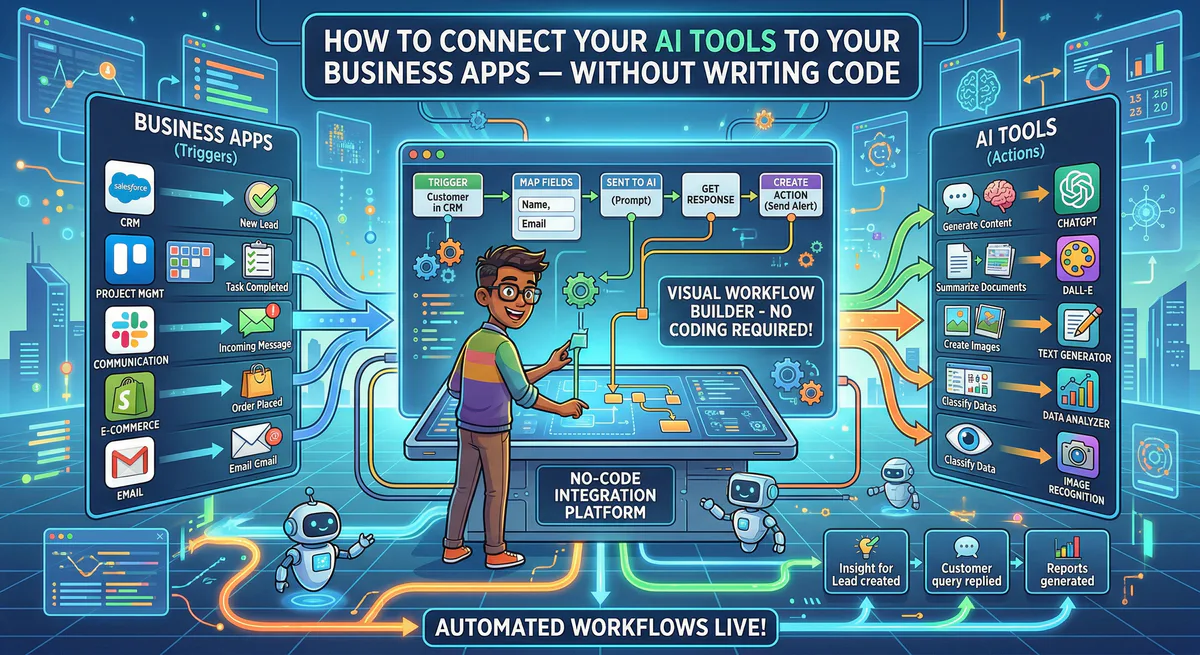
This guide shows you how to fix that. No programming. No terminal commands. No JSON files to edit. Just connect, and let your AI start working with your actual data.
The Problem: Your AI Lives in a Bubble
Right now, when you ask your AI to “summarize the latest support tickets,” here is what happens:
- You open your helpdesk (Zendesk, Freshdesk, Intercom)
- You manually copy 10 tickets into the chat
- The AI summarizes what you pasted
- You go back and copy 10 more
- Repeat
Or when you want to “update the CRM with yesterday’s meeting notes”:
- You write the notes in Claude
- You open HubSpot
- You find the contact
- You manually paste the notes into the correct field
This is not automation. This is you being the middleman between two tools that should be talking to each other.
The Solution: Give Your AI Direct Access to Your Apps
Imagine instead:
“Hey Claude, summarize the last 20 support tickets from Zendesk and post a summary to the #support channel in Slack.”
And it just… does it. No copy-paste. No switching tabs. Claude reads the tickets directly from Zendesk, writes the summary, and posts it to Slack — all in one prompt.
This is possible today, through something called MCP servers. You don’t need to understand how they work. You just need to connect them — like installing an app from an app store.
What Is an MCP Server? (The Non-Technical Version)
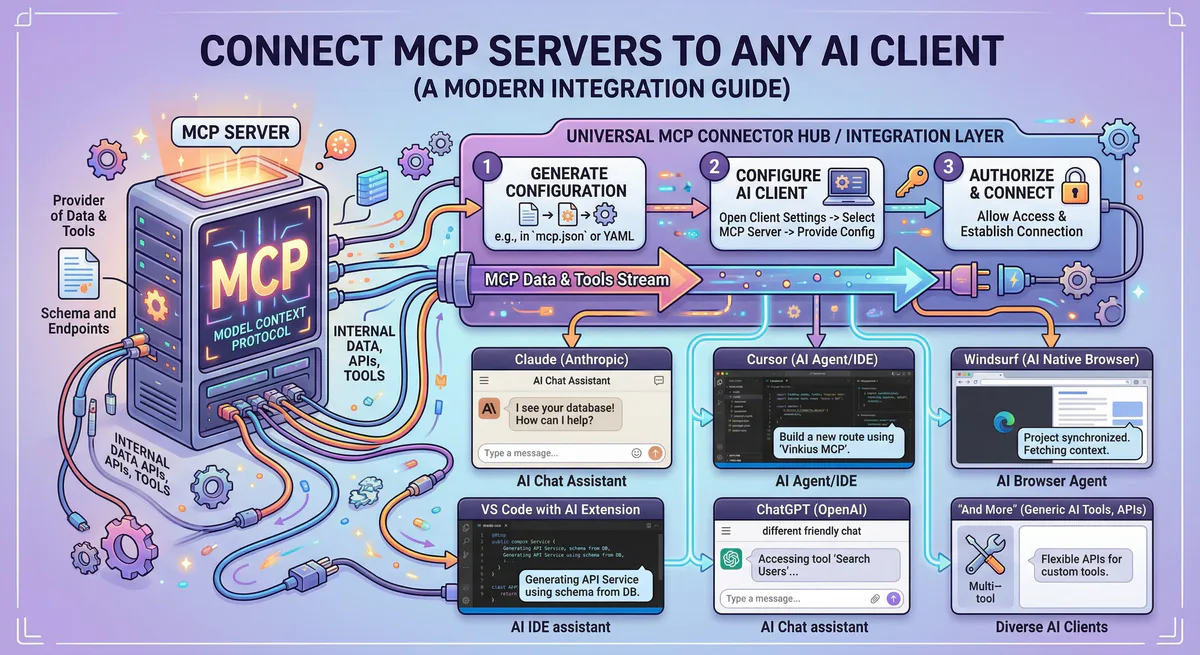
Think of an MCP server as a bridge between your AI tool and a business app.
- The Slack MCP server lets your AI read and send Slack messages
- The HubSpot MCP server lets your AI search and update CRM contacts
- The Stripe MCP server lets your AI check payment history
- The Google Sheets MCP server lets your AI read and write spreadsheet data
- The Notion MCP server lets your AI read your docs and databases
- The Jira MCP server lets your AI read and create project tickets
Each bridge connects your AI to one app. You can connect as many bridges as you need.
The key insight: you don’t build these bridges. You install them — like downloading an app from an app store.
How to Connect Your AI to Any App (Step-by-Step)
Step 1: Browse the App Catalog
Go to vinkius.com and browse the App Catalog. It works exactly like an app store — you search for the app you want, and subscribe with one click.
Need Slack? Search “Slack.” Need Stripe? Search “Stripe.” There are over 2,500 apps available: CRM systems, project management tools, payment processors, databases, communication platforms, and more.
Step 2: Subscribe and Get Your Connection URL
When you subscribe to an app, we give you a connection URL — a unique link that only you can use. It looks like this:
https://edge.vinkius.com/YOUR_TOKEN/slack-mcpThis URL is your bridge. It handles all the technical details — authentication, security, data formatting — so you don’t have to. Your API keys are stored in our encrypted vault. They never appear in your AI tool’s settings.
Step 3: Paste the URL Into Your AI Tool
This is the easiest step. You paste the connection URL into your AI tool’s settings:
In Claude Desktop:
- Open Claude Desktop
- Go to Settings → Developer → Edit Config
- Add the URL to the
mcpServerssection (Claude shows you exactly where)
In Cursor: After subscribing, you see a “Connect to Cursor” button. Click it. Cursor opens and asks you to confirm. Done.
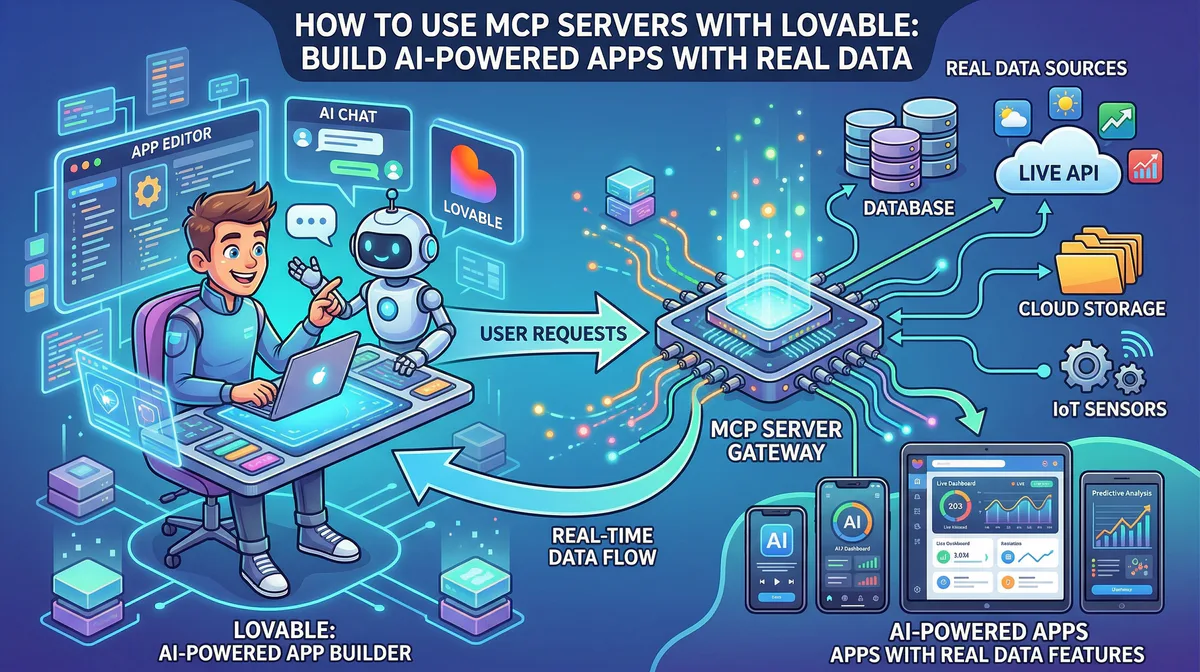
In Lovable:
- Go to Settings → Connectors → Personal Connectors
- Click “New MCP Server”
- Paste the URL. Done.
In VS Code (with Copilot):
- Press
Ctrl+Shift+Pand type “MCP: Add Server” - Choose “HTTP (Server-Sent Events)”
- Paste the URL
That’s it. Three steps. No code.
Step 4: Start Asking
Once connected, your AI can interact with the app directly. Here are real examples of what you can ask:
With Slack connected:
“Read the last 10 messages in #sales-team and summarize any action items.”
With HubSpot connected:
“Find all contacts tagged ‘Enterprise’ who haven’t been contacted in 30 days and list them.”
With Stripe connected:
“Show me all failed payments from the last week.”
With Google Sheets connected:
“Read the Q1 revenue spreadsheet and create a summary by region.”
With Jira connected:
“What are the open blockers in the current sprint?”
Real Workflows People Are Using Today
The Freelancer
Tools connected: Google Sheets + Stripe + Gmail MCP
“Check my Stripe dashboard for payments received this week. Update the ‘Income Tracker’ spreadsheet with the amounts and client names.”
Result: The freelancer’s income tracking spreadsheet is always up to date — without logging into Stripe or manually entering numbers.
The Marketing Manager
Tools connected: HubSpot + Slack + Notion MCP
“Pull all leads that entered the pipeline this week from HubSpot. Cross-reference them with the target companies listed in our Notion database. Post a summary to the #marketing-leads Slack channel.”
Result: The Monday morning lead review meeting starts with AI-generated insights instead of someone spending 2 hours pulling reports.
The Support Team Lead
Tools connected: Zendesk + Jira + Slack MCP
“Read the unresolved support tickets from Zendesk. For anything tagged ‘bug,’ create a Jira ticket in the ENGINEERING project. Post a summary of new bug tickets to #engineering in Slack.”
Result: Bug reports flow from support to engineering automatically. The support lead reviews the AI’s work instead of doing it manually.
The Small Business Owner
Tools connected: Stripe + Google Sheets + Notion MCP
“Summarize this month’s Stripe revenue by product. Update the financial summary in my Notion workspace. Flag any refunds over $500.”
Result: Monthly financial reviews that used to take half a day now take five minutes of reviewing what the AI prepared.
Why Not Just Use Zapier or Make?
Zapier and Make are great for trigger-based automations — “when X happens, do Y.” But they have three limitations that AI agents with MCP solve:
1. Zapier can’t reason. Zapier follows rigid rules. “When a new email arrives, add it to a spreadsheet.” It can’t decide which emails matter, summarize them, or adapt when the format changes. An AI agent with the Gmail MCP can read your inbox, understand context, and make judgment calls.
2. Zapier costs per action. Every step in a Zapier automation counts toward your plan. Complex, multi-step workflows with branching logic can consume thousands of actions per month. With MCP, you connect once and your AI interacts as many times as needed within your plan.
3. Zapier can’t be conversational. You can’t ask Zapier a question. You can’t say “Actually, filter out the European clients and redo that.” With an AI agent, you have a conversation — refine, iterate, ask follow-ups — all on live data.
MCP doesn’t replace Zapier. It adds a layer that Zapier can’t provide: intelligent, conversational, context-aware automation that adapts to what you ask.
What About Security? Can My AI See Everything?
This is the most important question. The answer: you control exactly what your AI can see.
When you connect through our platform, every connection includes built-in protection:
Your API keys are never exposed. Your credentials for Slack, HubSpot, Stripe — they are stored in an encrypted vault inside our platform. Your AI tool never sees them. Even if someone gains access to your Claude or Cursor settings, they only see the connection URL, not your actual passwords.
Sensitive data is automatically redacted.
We scan every response before it reaches your AI. Fields like email addresses, phone numbers, credit card numbers, and API keys are automatically replaced with [REDACTED]. Your AI sees enough to do its job, but not enough to leak sensitive information.
You can see everything your AI did. Every tool call your AI makes — what it read, what it wrote, when it did it — is logged in your dashboard. If your AI agent read 50 HubSpot contacts at 3pm on Tuesday, you can see exactly which contacts and what data was returned.
You can turn it off instantly. Every connection has an Emergency Kill Switch in your dashboard. If something goes wrong, you can disable any connection with one click — immediately. Your AI loses access to that app in that instant.
How Much Does It Cost?
We have a free plan that lets you try everything. The free plan includes:
- Access to the full App Catalog (2,500+ apps)
- A monthly request quota for experimentation
- All security features (DLP, audit logs, kill switch)
Paid plans increase the request quota for production workloads. You pay for the connection infrastructure, not per-app. Connect 5 apps or 50 — the plan cost is the same.
Check the latest pricing at cloud.vinkius.com.
Getting Started in 5 Minutes
Step 1. Create a free Vinkius account.
Step 2. Browse the App Catalog and subscribe to the apps your workflow needs. Start with the ones you use most — Slack, your CRM, your project board.
Step 3. Paste the connection URLs into your AI tool (Claude, Cursor, Lovable, VS Code — wherever you work).
Step 4. Ask your AI to do something with your real data. Start simple: “Read the last 5 messages in #general on Slack.” When that works, go bigger.
You have been copying and pasting data between apps and your AI. That era is over.
Questions? Join the Vinkius community or email support@vinkius.com.
Your agents need tools. We make them safe.
Pick an MCP server from the catalog. Subscribe. Copy the URL. Paste it into Claude, Cursor, or any client. One URL — DLP, audit trail, and kill switch included.
V8 sandbox isolation · Semantic DLP · Cryptographic audit trail · Emergency kill switch