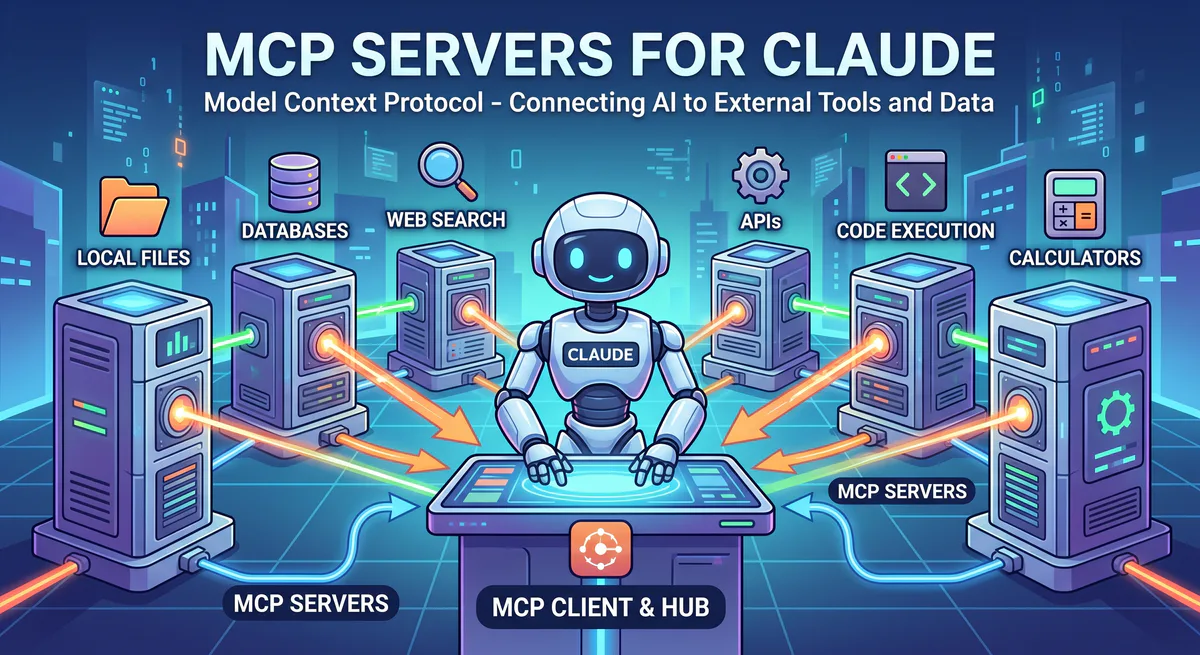
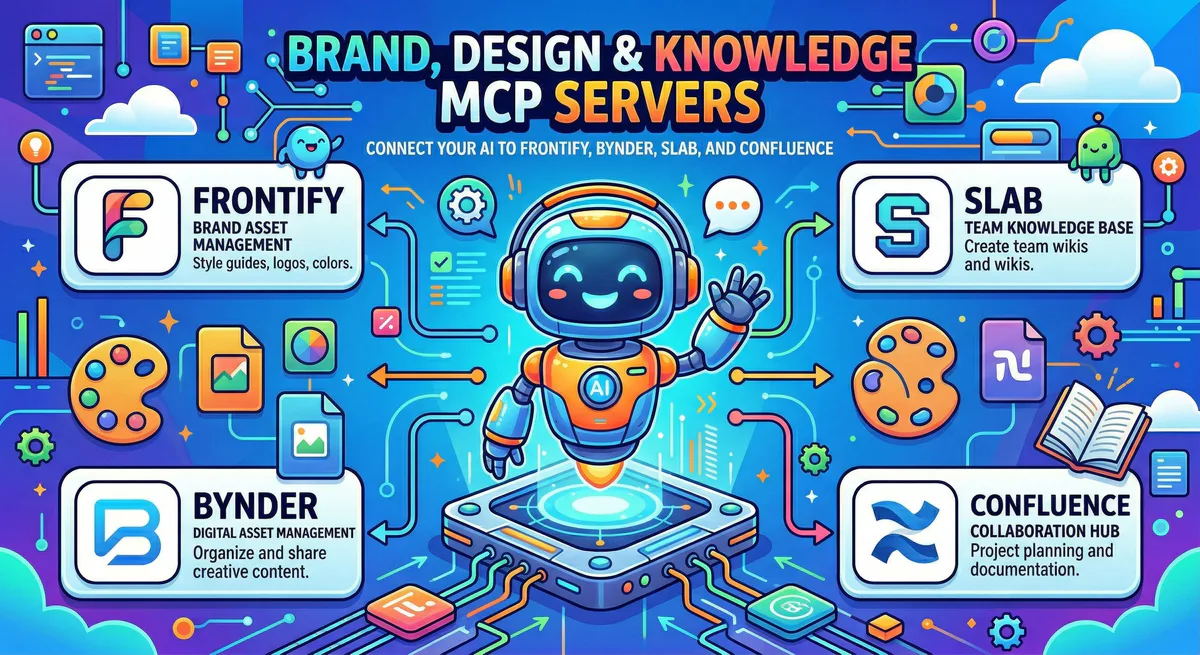
Every company has a brand bible. Colors, fonts, voice, approved logos, photography style, messaging hierarchies. It lives somewhere — usually in Frontify or Bynder, maybe in a Google Drive folder that only the design lead knows about, or scattered across Notion pages that nobody maintains.
Meanwhile, every company has institutional knowledge. The refund policy. The deployment runbook. The onboarding checklist. That one decision from 2024 about API versioning that nobody can find anymore. It lives in Slab, Confluence, Coda, or GitBook — and finding anything in it requires either a very specific search query or knowing exactly which team space to look in.
Here’s the problem: your AI doesn’t have access to any of it.
When you ask Claude to write a product email, it invents brand colors. When you ask Cursor to generate documentation, it doesn’t know your team’s standards. When you ask ChatGPT to summarize a policy, it can’t — because your policy lives behind a login that the AI can’t reach.
MCP servers change this. Each one creates a secure bridge between your AI tool and a specific platform, letting you ask questions in plain English and get answers from your real, live company data.
In this guide, we’ll walk through every brand management, digital asset management, and knowledge base MCP server in our catalog — what each one gives your AI access to, the specific workflows it unlocks, and why connecting through a managed gateway matters for data protection.
The Brand Consistency Problem
Before we dive into specific tools, it’s worth understanding why this category of MCP servers is so impactful.
According to Lucidpress research, consistent brand presentation across all platforms increases revenue by up to 23%. Yet the most common complaint from marketing teams is that AI-generated content is “off-brand” — wrong colors, wrong tone, wrong imagery.
The reason is simple: your AI has never read your brand guidelines. It doesn’t know your primary hex code is #1A1F36 and not “dark blue.” It doesn’t know that your brand voice is “professional but approachable, never sarcastic.” It doesn’t know that the logo version with the tagline is only for print, not digital.
When you connect your brand platform to your AI, every piece of generated content starts from the right foundation. The AI doesn’t guess — it reads the same source of truth your design team uses.
Brand Management
Frontify MCP
Frontify is the leading enterprise brand management platform, used by companies like Uber, Lufthansa, Volkswagen, and Vodafone to centralize brand guidelines, digital assets, and design templates. If your organization stores its brand identity in Frontify, this MCP server turns your AI into a brand-aware assistant.
What your AI can do once connected:
- Access complete brand guidelines — colors (primary, secondary, tertiary with hex, RGB, and CMYK values), typography (font families, weights, sizes, line-height rules), voice and tone guidelines, imagery rules, and do’s and don’ts
- Search and retrieve approved assets — logos in every format (SVG, PNG, EPS), icons, brand photography, templates, and illustrations
- Check asset versioning — verify whether a specific asset version is current, deprecated, or restricted to certain use cases
- Pull template specifications — requirements for social media posts, email headers, presentation decks, and advertising formats
- Verify brand compliance — cross-reference generated content against your brand ruleset
Real-world workflows this unlocks:
Content creation with brand awareness. Instead of generating a blog post and then manually checking whether the tone matches your brand voice, you ask your AI: “Write a product announcement email using our brand voice guidelines from Frontify.” The AI reads your actual voice guidelines — “professional but conversational, never use jargon, always address the reader as ‘you’” — and generates copy that matches.
Design handoff acceleration. A developer asks: “What are the spacing rules for our card components?” Instead of opening Frontify, navigating to the design system section, and finding the right page, the AI reads it directly and responds: “Cards use 24px internal padding, 16px gap between elements, and 8px border-radius.”
Asset retrieval without tab-switching. A social media manager asks: “Find the latest version of our logo in SVG format — the one approved for dark backgrounds.” The AI searches Frontify’s asset library, finds the correct variant, and provides it.
Example prompts:
- “What are our primary and secondary brand colors with hex codes?”
- “Pull the latest version of our logo in SVG format”
- “What does our brand voice guideline say about the tone for customer-facing emails?”
- “Which logo variations are approved for dark backgrounds vs. light backgrounds?”
- “Show me the brand template requirements for Instagram Stories”
- “Are there any brand assets that were updated in the last 30 days?”
Why this matters for Frontify users specifically: Frontify’s value proposition is centralized brand governance. But the brand guidelines only work if people actually read them. In practice, teams skip the guidelines and guess — especially when they’re moving fast. Connecting Frontify to your AI means the guidelines are always consulted, automatically, every time content is created. It turns passive documentation into active brand enforcement.
Connect: Frontify MCP in our App Catalog →
Related: If you use Frontify alongside other design tools, see also our Figma MCP and Canva MCP sections below.
Bynder MCP
Bynder is an enterprise-grade digital asset management (DAM) platform serving as the single source of truth for all digital media — images, videos, documents, presentations, and brand collateral. Companies like Spotify, Everlane, and Puma use Bynder to organize, manage, and distribute assets across global teams.
What your AI can do once connected:
- Search your entire asset library by keyword, tag, category, campaign, date, or metadata field
- Retrieve specific assets with their full metadata: usage rights, expiration dates, approved channels, and licensing terms
- Check approval status — identify which assets are approved for external use, which are internal-only, and which are pending review
- Find the right asset for a specific context — “I need a hero image for the Q2 email campaign that’s approved for web use”
- Monitor asset lifecycle — identify assets expiring soon, recently updated assets, or deprecated versions that shouldn’t be used
Real-world workflows this unlocks:
Campaign asset discovery. Your email marketing manager asks: “Find all product images tagged ‘summer campaign’ that are approved for email use.” Instead of opening Bynder, setting three filters, scrolling through results, and checking each asset’s permission metadata, the AI does it in one query and returns a curated list.
Rights management. Your social media team asks: “Can we use the ‘brand-overview-2026’ video on Instagram?” The AI checks the asset’s metadata in Bynder — licensed for web and social, expires December 2026, no geographic restrictions — and gives a clear “Yes, it’s approved for Instagram use.”
Version control. Someone asks: “Is this the latest version of the pitch deck?” The AI checks Bynder’s version history and responds: “No, the current version is v3.2, uploaded on March 15. You’re referencing v2.8.”
Example prompts:
- “Find all product images tagged ‘summer campaign’ in Bynder”
- “Which hero images are approved for the website homepage?”
- “Show me the usage rights for the video asset ‘brand-overview-2026’”
- “What’s the latest version of our pitch deck?”
- “List all assets that expire in the next 30 days”
- “How many new assets were added to the product photography collection this month?”
Connect: Bynder MCP in our App Catalog →
Figma MCP
Figma is the design platform where modern product teams create, prototype, and collaborate. With over 4 million paying customers, it’s where most UI/UX design happens today. When your AI can read Figma files, it stops guessing about design specifications and starts referencing the real thing.
What your AI can do once connected:
- Read design file structures — pages, frames, and component hierarchies
- Extract design tokens — every color, spacing value, font size, border-radius, and shadow defined in your design system
- Reference component variants — all the states of your button component, all the size variants of your card component
- Pull component metadata — descriptions, usage notes, and constraints that your design team documented
Real-world workflows this unlocks:
Design-to-code accuracy. A developer building a new feature asks: “What design tokens are defined in our Figma design system for the ‘Card’ component?” The AI responds with exact values: “Background: #FFFFFF, border: 1px solid #E2E8F0, border-radius: 12px, padding: 24px, shadow: 0 1px 3px rgba(0,0,0,0.1).” No more “eyeballing” designs.
Design audit. A design lead asks: “List all the button variants in our component library.” The AI returns every variant: Primary, Secondary, Ghost, Danger, each with Small/Medium/Large sizes — 12 variants total. The lead spots that the “Danger/Small” variant was never documented.
Example prompts:
- “What design tokens are defined in our Figma design system?”
- “List all the button variants in the component library”
- “What’s the spacing scale used in the mobile app designs?”
- “What color palette is defined for the dark mode theme?”
Connect: Figma MCP in our App Catalog →
Canva MCP
Canva is the design platform used by over 190 million monthly active users — primarily marketing teams, social media managers, and non-designers who create visual content at scale. If your team produces social graphics, presentations, or ad creatives in Canva, this MCP server lets your AI reference existing designs and brand kit assets.
What your AI can do once connected:
- Search team designs by name, date, or category
- Access your Brand Kit — the logos, colors, and fonts stored in your Canva account
- Pull template specifications — dimensions, elements, and guidelines for social media, presentations, and advertising formats
Real-world workflow: A marketing coordinator asks: “What’s in our Canva Brand Kit? List the approved colors and fonts.” The AI reads the Brand Kit directly: “Primary: #1A1F36, Secondary: #4F46E5, Accent: #F59E0B. Fonts: Inter for headings, DM Sans for body.”
Connect: Canva MCP in our App Catalog →
Knowledge Bases & Documentation
Why Knowledge Access Changes Everything
The average employee spends 3.6 hours per day searching for information, according to McKinsey. In a 100-person company, that’s 360 hours per day — 45 full-time employees’ worth of effort — just looking for things.
Knowledge base MCP servers solve this by letting your AI search your company’s internal documentation directly. Instead of employees navigating a wiki, guessing which section to look in, and reading through long documents, they ask a question and get a direct answer with a link to the source.
The impact is immediate. New hires stop asking the same onboarding questions because the AI answers them instantly from the onboarding docs. Managers stop scrolling through policy pages because the AI summarizes the relevant sections. Engineers stop searching for deployment runbooks because the AI pulls the exact checklist.
Slab MCP
Slab is a knowledge management platform designed for organized, searchable internal documentation. Teams use it for policies, procedures, technical documentation, onboarding guides, and institutional knowledge — the kind of information that needs to be findable months or years after it was written.
What your AI can do once connected:
- Full-text search across your entire knowledge base — every article, every section, every tagged collection
- Retrieve specific documents — policies, procedures, guides, and standards by topic or tag
- Check document freshness — when a critical doc was last updated, who updated it, and whether it’s flagged for review
- Summarize long documents — distill a 15-page security policy into the 5 key rules your team needs to follow
- Cross-reference related articles — “What’s the relationship between our PTO policy and our remote work policy?”
Real-world workflows this unlocks:
Instant policy answers. An employee asks: “What does our PTO policy say about carryover days?” Instead of finding the HR Knowledge Base → Benefits section → PTO Policy → scrolling to Section 4.2, the AI reads the document directly and answers: “Unused PTO carries over up to a maximum of 5 days, which must be used within Q1 of the following year.”
Onboarding acceleration. A new hire asks: “What’s the process for requesting access to production systems?” The AI searches Slab, finds the IT Onboarding Guide, and summarizes the 3-step process with links to the relevant forms.
Compliance verification. A manager asks: “When was our security incident response plan last updated?” The AI checks the document metadata: “Last updated March 12, 2026, by Sarah Chen. It’s scheduled for quarterly review — next review due June 12.”
Example prompts:
- “Search Slab for our refund policy and summarize the key points”
- “Find the employee onboarding checklist for engineering hires”
- “What does our PTO policy say about carryover days?”
- “When was our security incident response plan last updated and by whom?”
- “Show me all articles tagged ‘engineering standards’”
- “What’s our process for deploying to production? Give me the step-by-step checklist.”
Connect: Slab MCP in our App Catalog →
Confluence MCP
Confluence is Atlassian’s enterprise wiki and collaboration platform — the documentation backbone for millions of teams worldwide. With deep integration into Jira and the broader Atlassian ecosystem, Confluence is where engineering, product, and operations teams store everything from architecture decision records to meeting notes to project retrospectives.
What your AI can do once connected:
- Search across all spaces and pages — engineering wiki, product documentation, meeting notes, project archives
- Read full page content and extract specific information without navigating the Confluence UI
- Access meeting notes and decision logs — find action items, decisions, and follow-ups from specific meetings
- Discover related content — find pages you didn’t know existed by searching across team boundaries
- Check content freshness — identify stale documentation that needs updating
Real-world workflows this unlocks:
Cross-team discovery. The most powerful capability is finding information across team boundaries. An engineer asks: “Has anyone documented best practices for rate limiting in our services?” The AI searches every Confluence space — not just the engineering wiki but also the architecture, platform, and security spaces — and finds a relevant page in the Platform team’s space that the engineer had no idea existed.
Meeting recall. Your product manager asks: “What were the action items from last week’s product review meeting?” The AI finds the meeting notes, extracts the action items, and lists who’s responsible for each one.
Technical documentation navigation. An SRE asks: “Find our deployment runbook and list the pre-deploy checklist steps.” The AI locates the runbook, pulls the checklist section, and presents it as a clean, numbered list — no Confluence navigation required.
Example prompts:
- “Search Confluence for the architecture decision record about database migration”
- “What were the action items from last week’s product review meeting?”
- “Find our deployment runbook and list the pre-deploy checklist steps”
- “Summarize the API design guidelines from the engineering space”
- “Which Confluence pages were updated in the last 7 days in the Product space?”
- “Is there any documentation about how we handle GDPR data deletion requests?”
Connect: Confluence MCP in our App Catalog →
Coda MCP
Coda combines the flexibility of documents with the power of databases — used by teams for project tracking, wikis, collaborative databases, and custom workflows. It’s particularly popular with operations and product teams who need more structure than a wiki but more flexibility than a spreadsheet.
What your AI can do once connected:
- Query Coda docs and tables — structured data from team databases, project trackers, and OKR dashboards
- Pull records with filters — “Show me all items in the Product Roadmap table with status ‘In Progress’”
- Access cross-references — read from multiple connected tables in a single query
- Search across docs — find information across your entire Coda workspace
Real-world workflow: A project manager asks: “What items on our product roadmap are marked ‘At Risk’ and who owns them?” The AI queries the Coda roadmap table and returns a structured list with owners, due dates, and risk notes.
Connect: Coda MCP in our App Catalog →
GitBook MCP
GitBook is where developer teams publish API documentation, product guides, and SDK references. If your public-facing or internal technical documentation lives in GitBook, this MCP server lets your AI read it natively.
What your AI can do once connected:
- Search published documentation across all collections and pages
- Pull API reference pages — endpoints, parameters, authentication requirements
- Find integration guides and changelog entries — “What changed in the v3.0 API release?”
- Cross-reference documentation — “What’s the difference between the REST API and the GraphQL API for user queries?”
Real-world workflow: A developer asks: “What authentication method does the billing API use?” The AI searches GitBook, finds the billing API reference, and responds: “Bearer token authentication. Include the token in the Authorization header. Tokens expire after 24 hours.”
Connect: GitBook MCP in our App Catalog →
Why Brand & Knowledge Data Needs a Secure Gateway
When your AI accesses brand guidelines or company documentation, it may encounter sensitive information that was never meant to leave the organization:
- Unreleased product names and launch dates buried in strategy documents
- Confidential pricing and margin data referenced in internal wikis
- Employee personal information — phone numbers, addresses, or compensation data in HR knowledge bases
- API keys, tokens, or passwords accidentally pasted into documentation (yes, it happens more than you’d expect)
- Customer data — names, contract values, or technical details referenced in meeting notes
Without a secure gateway, this information flows directly from your knowledge base to the AI model. With our gateway, every response passes through our DLP (Data Loss Prevention) engine before it reaches your AI tool. The engine scans for patterns like credit card numbers, SSNs, API keys, and email addresses, and redacts them automatically.
Your team gets the answers they need. Your secrets stay protected.
The security stack included with every connection:
| Protection | What it does |
|---|---|
| DLP Redaction | Automatically removes PII, credentials, and sensitive patterns from AI responses |
| Encrypted Vault | Your platform API keys are stored encrypted — never in config files or on your device |
| Audit Trail | Every document access and query is logged with timestamp and user |
| Kill Switch | Revoke any connection instantly with one click |
| Per-Token Access | Each team member gets their own connection — no shared credentials |
How All the Pieces Fit Together
The real power emerges when you connect multiple brand and knowledge tools to the same AI session. Each server works independently, but when combined, your AI has access to the complete picture:
| Question | Tool used | What it pulls |
|---|---|---|
| ”Write a product launch email in our brand voice” | Frontify MCP | Voice guidelines, tone rules, color palette |
| ”Include a hero image from the Spring collection” | Bynder MCP | Approved image with usage rights |
| ”Reference the pricing announced in the product brief” | Confluence MCP | Product brief document from the Product space |
| ”Follow the email template dimensions we use” | Canva MCP | Email template specs from Brand Kit |
| ”Make sure this aligns with our messaging hierarchy” | Slab MCP | Brand messaging framework document |
One prompt. Five data sources. Zero tab-switching.
Internal Linking: Related Cluster Guides
This is one article in our complete MCP server directory. For other tool categories, see:
- CRM & Sales MCP Servers — Salesforce, HubSpot, Pipedrive, Close, Apollo
- Marketing MCP Servers — SurferSEO, Jasper, AppTweak, Semrush
- Developer & Data MCP Servers — Retool, Codacy, Checkly, BigQuery
- HR MCP Servers — HiBob, Workday, BambooHR, Gusto
- Customer Support MCP Servers — Zendesk, Freshdesk, Intercom
- The Complete MCP Server Directory — 2,500+ apps across every category
How to Connect Any Tool
Every tool in this guide connects the same way:
- Go to our App Catalog
- Search for the tool (Frontify, Bynder, Slab, Confluence, Figma, Canva, Coda, or GitBook)
- Click “Subscribe” — we handle all the API configuration
- Copy the connection URL we generate for you
- Paste into your AI tool:
- Claude Desktop: Settings → Developer → Edit Config → add to
mcpServers - Cursor: Settings → MCP → Add Server (or click “Connect to Cursor”)
- ChatGPT Desktop: Settings → Connectors → Add
- VS Code:
Ctrl+Shift+P→ “MCP: Add Server” → paste URL - Lovable: Settings → Connectors → New MCP Server
- Claude Desktop: Settings → Developer → Edit Config → add to
Time: under 2 minutes per tool. Every additional tool after the first takes about 30 seconds.
Start Building Your AI Brand & Knowledge Stack
Browse all brand & knowledge MCP servers →
Your AI should know your brand guidelines, your design system, and your company knowledge as well as your most tenured employee. These connections make that possible — securely, instantly, with a full audit trail.
No more off-brand content. No more lost documentation. No more 3.6 hours a day searching for information.
Need a brand or knowledge tool that’s not in the catalog? Email us at support@vinkius.com — we add new servers every week.
Your agents need tools. We make them safe.
Pick an MCP server from the catalog. Subscribe. Copy the URL. Paste it into Claude, Cursor, or any client. One URL — DLP, audit trail, and kill switch included.
V8 sandbox isolation · Semantic DLP · Cryptographic audit trail · Emergency kill switch