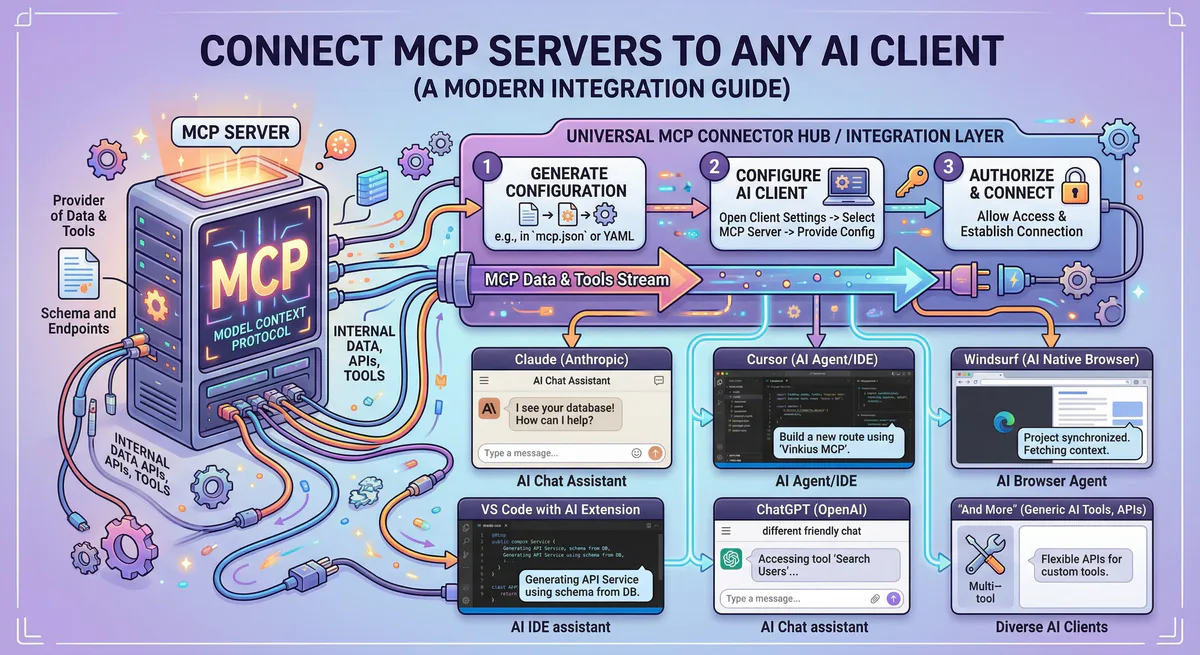
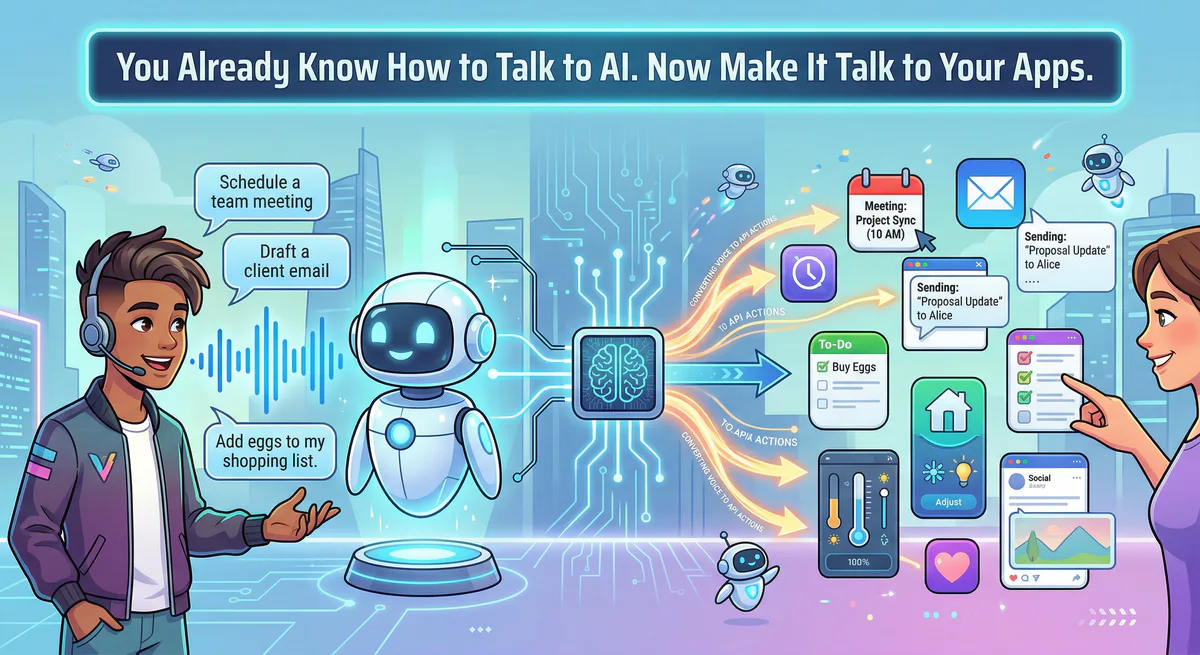
You already talk to AI every day.
You ask Claude to rewrite an email. You ask ChatGPT to summarize a long document. You tell Cursor to fix a bug. You’ve gotten good at it. You know how to phrase things to get the best results. You know the difference between a vague prompt and a specific one.
But here’s the thing nobody told you: your AI can hear you perfectly. It just can’t do anything about it.
When you say “check my Stripe for failed payments” — Claude doesn’t know what your Stripe is. When you say “post an update to #marketing in Slack” — ChatGPT has no idea what your Slack workspace is. When you say “find all enterprise leads in HubSpot” — your AI doesn’t even know you have a HubSpot account.
Your AI has a brain. It doesn’t have hands.
This guide shows you how to give it hands.
What “Giving AI Hands” Actually Means
Right now, when you want your AI to work with a business tool, you do this:
- Open the tool (Stripe, HubSpot, Slack, whatever)
- Find the information manually
- Copy it
- Paste it into the AI chat
- Wait for the answer
- Go back to the tool and apply the answer manually
You are the middleman. You are the hands.
After connecting your apps, it works like this:
- Tell the AI what you need: “Show me all failed payments from Stripe this week”
- The AI reaches into Stripe, pulls the data, and shows you the answer
That’s it. No copy-paste. No tab switching. No exporting CSVs. You ask in plain English. The AI does the rest.
15 Things You Can Say Once Your Apps Are Connected
These aren’t hypothetical. These are real prompts that work right now, once you connect the right apps:
Money & Payments (Stripe)
- “Show me this month’s revenue, broken down by product.”
- “List all customers whose payment failed in the last 7 days.”
- “How many new subscriptions did we get this week vs. last week?”
Clients & Leads (HubSpot)
- “Find all contacts tagged ‘Enterprise’ who haven’t been contacted in 30 days.”
- “Summarize the deal pipeline — how much is in negotiation vs. closed this quarter?”
- “Who are our top 5 leads by deal size right now?”
Team Communication (Slack)
- “Summarize the last 20 messages in #product-updates and list any action items.”
- “Post a message to #sales: ‘New enterprise deal closed: Acme Corp, $45K ARR.’”
- “What did the engineering team discuss in #dev this morning?”
Knowledge & Docs (Notion)
- “Find our onboarding checklist and tell me which steps are marked incomplete.”
- “What does our refund policy say about annual subscriptions?”
- “Summarize the meeting notes from last Thursday’s product review.”
Project Management (Jira)
- “What are the open blockers in the current sprint?”
- “Create a new ticket: ‘Fix checkout page mobile layout’ — priority high, assign to design team.”
Data & Reports (Google Sheets)
- “Read the Q1 revenue sheet and tell me which region grew the most.”
You know how to say all of these. You’ve been talking to AI for a year. The only thing missing is the connection between the AI and the app.
This Is the Skill You Already Have
Think about it. You learned prompt engineering naturally:
- You figured out that “write me an email” gives worse results than “write a professional email to a client explaining a 2-week delay, tone: empathetic but confident”
- You know that giving context produces better answers
- You understand when to be specific and when to let the AI be creative
This is the exact same skill you need to talk to your business apps through AI. The only difference is that instead of pasting data into the chat, the AI pulls it directly from the source.
Better prompting = better results. You already know this. You just need to unlock the tools.
How to Connect Your Apps (The 3-Minute Version)
Step 1: Pick the app you use most
What’s the one tool you open every single day? Slack? Stripe? HubSpot? Notion? Google Sheets? Start there.
Step 2: Get the bridge
Go to our App Catalog. Search for your app. Click “Subscribe.” You’ll get a connection URL — a single link that gives your AI controlled access to that tool.
https://edge.vinkius.com/YOUR_TOKEN/slack-mcpThis URL is a bridge. It connects your AI to the app. Our platform handles all the technical complexity behind it: authentication, security, data formatting.
Step 3: Paste the URL into your AI tool
This takes about 30 seconds:
Claude Desktop: Settings → Developer → Edit Config → paste URL
Cursor: Settings → MCP → Add Server → paste URL
ChatGPT (Desktop): Settings → Connectors → Add → paste URL
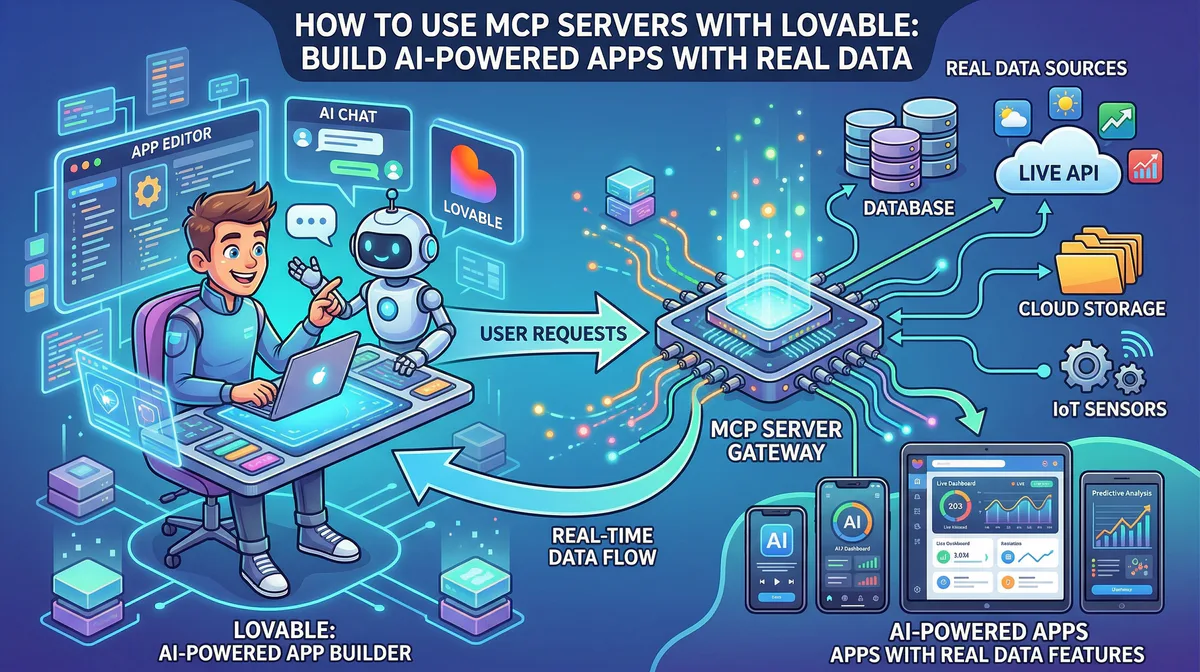
Lovable: Settings → Connectors → Personal Connectors → New MCP Server → paste URL
Step 4: Start talking
Your AI can now see your app. Ask it anything — just like you would ask a human assistant who has access to your accounts:
“Check Stripe for any refunds over $200 this week.”
The AI reads Stripe. It finds the refunds. It shows you the list. No code. No API documentation. No developer needed.
”But I’m Not Technical at All”
Perfect. You don’t need to be.
Here’s everything you need to know:
- You don’t write code. You paste a URL and talk.
- You don’t manage API keys. We store all credentials in an encrypted vault. They never touch your computer.
- You don’t read documentation. The AI figures out which tools to use based on what you ask.
- You don’t handle errors. If something goes wrong, we handle it. If something fails permanently, there’s a kill switch in your dashboard.
If you can copy a URL and paste it into a settings panel, you have all the technical skills this requires.
What Happens Behind the Scenes (The Simple Version)
When you ask “show me failed payments from Stripe this week”, here’s what actually happens:
You say: "Show me failed payments from Stripe this week"
    ↓
Your AI thinks: "I need the Stripe bridge for this"
    ↓
The bridge connects to Stripe using YOUR credentials
(stored safely in our vault — not in your AI tool)
    ↓
Stripe responds with the payment data
    ↓
The bridge filters out sensitive info
(credit card numbers → [REDACTED])
    ↓
Your AI receives the clean data
    ↓
Your AI answers: "There were 3 failed payments this week..."
The whole process takes 2-3 seconds. You just see the answer.
Real People, Real Results
Maria — Freelance Designer
Before: Spent 45 minutes every Friday logging into Stripe, copying payment data, and updating her income spreadsheet manually.
After: Asks Claude: “Check Stripe for payments received this week and update my income tracker in Google Sheets.” Takes 10 seconds. Every Friday.
Bridges connected: Stripe MCP + Google Sheets MCP
James — Marketing Manager
Before: Spent Monday mornings pulling lead reports from HubSpot, cross-referencing them with campaign data in Google Sheets, then typing a summary for the team Slack channel.
After: Asks Claude: “Pull this week’s new leads from HubSpot, compare with the campaign performance sheet, and post a summary to #marketing in Slack.” Done before his coffee is ready.
Bridges connected: HubSpot MCP + Google Sheets MCP + Slack MCP
Sophie — Small Business Owner
Before: Had no visibility into support patterns. Knew customers complained, didn’t know about what or how often.
After: Asks Claude weekly: “Analyze the last 50 Zendesk tickets. What are the top 3 complaints? Any trends compared to last month?” Now makes product decisions based on data instead of gut feeling.
Bridges connected: Zendesk MCP
The Apps Your AI Can Talk To
We have over 2,500 bridges in our App Catalog. Here are the ones people connect first:
| Category | Apps available |
|---|---|
| Payments | Stripe, Square, PayPal |
| CRM | HubSpot, Salesforce, Pipedrive |
| Communication | Slack, Gmail, Discord |
| Project Management | Jira, Linear, Asana, Trello, Notion |
| Databases | Supabase, PostgreSQL, MySQL, MongoDB |
| Spreadsheets | Google Sheets, Airtable |
| Dev Tools | GitHub, GitLab, Bitbucket |
| Support | Zendesk, Freshdesk, Intercom |
| Web | Firecrawl (web scraping), Brave Search |
| Storage | Google Drive, Dropbox, S3 |
Every single one works the same way: subscribe → copy URL → paste → talk.
Your AI is Waiting
You’ve spent a year learning how to talk to AI. You’ve mastered the prompts. You’ve figured out the tone, the structure, the specificity.
Now it’s time to let the AI actually do things.
Step 1. Create a free account.
Step 2. Browse the App Catalog and connect your first app.
Step 3. Ask your AI something real. Not “summarize this text I pasted.” Instead: “Read the last 10 messages in #sales on Slack and summarize any deals mentioned.”
The difference between AI that talks and AI that works is one connection.
Need help connecting your first app? Join our community — we help people go from “AI that talks” to “AI that works” every day.
Your agents need tools. We make them safe.
Pick an MCP server from the catalog. Subscribe. Copy the URL. Paste it into Claude, Cursor, or any client. One URL — DLP, audit trail, and kill switch included.
V8 sandbox isolation · Semantic DLP · Cryptographic audit trail · Emergency kill switch